
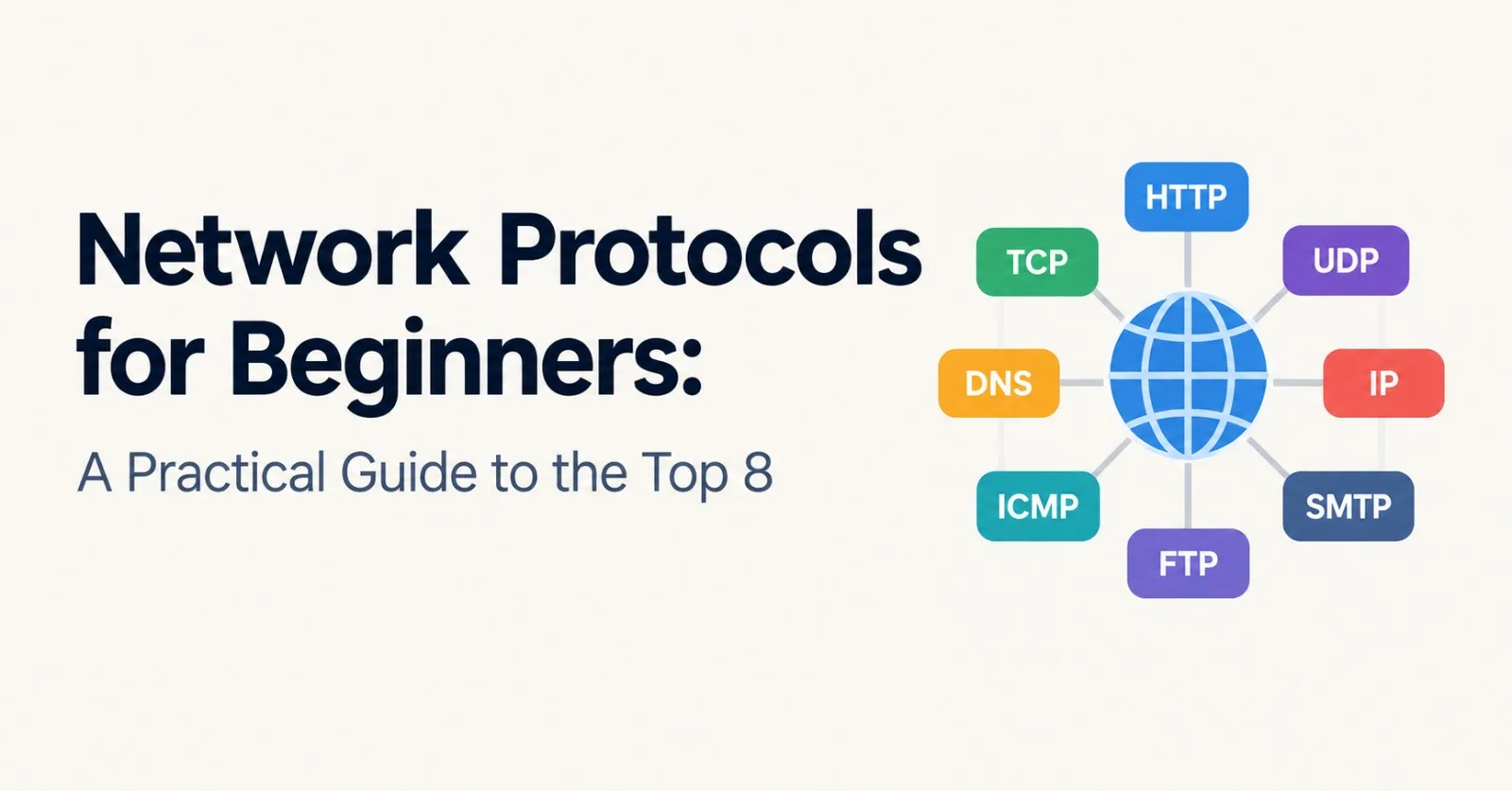
Every time you open a website, send an email or push code to GitHub, your computer talks to another computer somewhere else. And the two of them only understand each other because they follow the same rules.
Those rules are called network protocols.
A protocol is just an agreement. "If you send me data in this format, I will reply in that format." That's all it is. Two people agreeing to speak the same language and take turns talking.
There are hundreds of protocols out there. But a small group does most of the daily work. In this post I'll walk through eight of the most popular ones, in simple words.
For each protocol you'll see what it does, how it works, where you run into it, and something you can try on your own machine.
💡 Note: This is not a strict ranking. I ordered them so each one builds on the one before it. If you read top to bottom, the whole picture comes together by the end.
The big picture first
Before the list, one quick idea. Network protocols are stacked in layers. Each layer does one job and leans on the layer below it.
flowchart TB
    A["Application layer<br/>HTTP, HTTPS, DNS, DHCP, SSH, SMTP"] --> B["Transport layer<br/>TCP, UDP"]
    B --> C["Internet layer<br/>IP"]
    C --> D["Link layer<br/>Ethernet, Wi-Fi"]
You don't need to memorize this. Just remember that when you load a web page, HTTP rides on top of TCP, TCP rides on top of IP, and IP rides on top of Wi-Fi or a cable.
Here is the cheat sheet for all eight:
# | Protocol | Its job in one line | Default port | Runs over |
|---|---|---|---|---|
1 | IP | Addresses devices and routes packets | none | Link layer |
2 | TCP | Reliable, ordered delivery | uses ports | IP |
3 | UDP | Fast delivery with no guarantees | uses ports | IP |
4 | DHCP | Hands out IP addresses automatically | 67 and 68 | UDP |
5 | DNS | Turns names into IP addresses | 53 | UDP, sometimes TCP |
6 | HTTP / HTTPS | Moves web pages and API data | 80 / 443 | TCP (or QUIC over UDP for HTTP/3) |
7 | SSH | Secure remote login and tunnels | 22 | TCP |
8 | SMTP | Sends email between servers | 25, 587, 465 | TCP |
1. IP (Internet Protocol): the postal system
IP is the base of everything. Its job is simple: give every device an address and move data from one address to another.
Data is chopped into small chunks called packets. Each packet carries two addresses, where it came from and where it's going. Routers along the way read the destination and pass the packet to the next router, hop by hop, until it arrives.
Think of it like the postal service. IP reads the address on the envelope and gets it moving. It doesn't open the letter.
Here is the part that surprises people. IP is best effort. It does not promise that a packet will arrive, arrive in order, or arrive only once. Packets can get lost or shuffled. Fixing that is somebody else's job (hello, TCP).
IPv4 and IPv6
IPv4 addresses are 32 bits long and look like
192.168.1.10. That gives about 4.3 billion addresses, which sounded like plenty in the 1980s and then ran short.IPv6 addresses are 128 bits long and look like
2001:db8::1. That's a number so large we won't run out any time soon.
Most home devices also sit behind a router that uses NAT. Your phone and laptop have private addresses like 192.168.x.x, and the router shares one public address on their behalf.
🧪 Try it: Run
ping 8.8.8.8to check you can reach another machine. Then runtraceroute 8.8.8.8(on Windows it'stracert 8.8.8.8) and watch every router hop between you and Google's DNS server. Fun fact: ping and traceroute use a small helper protocol called ICMP that lives right next to IP.
2. TCP (Transmission Control Protocol): the careful courier
IP gets packets across the network. TCP makes sure the whole conversation actually works.
TCP is connection-oriented. Before any real data moves, the two sides do a quick greeting called the three-way handshake:
sequenceDiagram
    participant C as Client
    participant S as Server
    C->>S: SYN (can we talk?)
    S->>C: SYN-ACK (sure, I am ready)
    C->>S: ACK (great, let's go)
    Note over C,S: Connection open, data can flow
After that, TCP keeps track of everything:
Sequence numbers so the receiver can put packets back in the right order.
Acknowledgements so the sender knows what arrived.
Retransmission so lost packets are sent again.
Flow control so a fast sender doesn't flood a slow receiver.
Congestion control so everyone slows down a bit when the network is crowded.
The price is a little extra time (the handshake) and a little extra overhead. In return you get a clean, reliable stream of bytes. That's why the web, email, SSH, file downloads and most database connections use TCP.
💡 Tip: ports. IP gets data to the right machine. A port number gets it to the right app on that machine. Think of IP as the street address and the port as the apartment number. That's how your browser, your Spotify and your terminal can all use the network at the same time without mixing up their data.
3. UDP (User Datagram Protocol): fast and loose
UDP is TCP's more relaxed sibling. It has no handshake, no acknowledgements, no retransmission and no ordering. You send a packet and hope for the best.
That sounds bad, but it's exactly what some apps want. The header is tiny (just 8 bytes) and there is no waiting around.
When is "late" worse than "lost"? Think of a video call. If one frame goes missing, you barely notice. If the call stops for a second to wait for that frame, it's really annoying. Same story for online games and live streams.
UDP is used for:
Video and voice calls
Online games
Live streaming
DNS lookups
QUIC, the transport behind HTTP/3 (it builds its own reliability on top of UDP)
Here is TCP and UDP side by side:
TCP | UDP | |
|---|---|---|
Connection | Handshake first | None |
Delivery guarantee | Yes, retransmits lost data | No |
Order | Preserved | Not guaranteed |
Speed | Slightly slower | Faster, lower overhead |
Good for | Web, email, SSH, file transfer | Calls, games, streaming, DNS |
4. DHCP (Dynamic Host Configuration Protocol): the friendly receptionist
When you join a Wi-Fi network, you don't type in an IP address. Your device just works. That's DHCP.
DHCP automatically gives your device everything it needs to get online:
An IP address
A subnet mask
A default gateway (usually your router)
A DNS server to use
The conversation is called DORA, after its four steps:
sequenceDiagram
    participant D as Your device
    participant S as DHCP server (router)
    D->>S: Discover (anyone out there?)
    S->>D: Offer (here is an address you can use)
    D->>S: Request (yes please, I will take it)
    S->>D: Acknowledge (it's yours for now)
Two small details worth knowing. DHCP runs over UDP, with the server on port 67 and the client on port 68. And the first message is a broadcast, because your device has no IP address yet and has no idea who to talk to.
The address isn't yours forever. It comes with a lease, and your device renews it before it runs out. Servers, printers and other things that must always keep the same address usually get a fixed address or a DHCP reservation.
🧪 Try it: On Windows, run
ipconfig /alland look for "DHCP Server" and "Lease Obtained". On Linux,ip addr showlists your current addresses.
5. DNS (Domain Name System): the phonebook of the internet
Humans remember example.com. Computers need an IP address. DNS translates one into the other.
Without DNS you would have to memorize numbers for every site you visit. DNS runs on port 53.
Here is what happens when your device asks for example.com and nothing is cached yet:
sequenceDiagram
    participant B as Your device
    participant R as Recursive resolver
    participant Root as Root server
    participant TLD as .com server
    participant A as Authoritative server
    B->>R: What is the IP of example.com?
    R->>Root: Who handles .com?
    Root->>R: Ask the .com servers
    R->>TLD: Who handles example.com?
    TLD->>R: Ask this authoritative server
    R->>A: What is the IP of example.com?
    A->>R: 203.0.113.10
    R->>B: 203.0.113.10
The IP in the diagram is just a sample address reserved for documentation.
It looks like a lot of steps, but it's quick, and most of the time it's skipped entirely. Answers are cached along the way (on your device, on your router, on the resolver), and each record has a TTL that says how long it can be cached.
Common record types
Record | What it holds |
|---|---|
A | An IPv4 address for a name |
AAAA | An IPv6 address for a name |
CNAME | An alias that points to another name |
MX | Where to deliver email for the domain |
TXT | Free text, often used for verification and email security |
NS | Which servers are authoritative for the domain |
DNS normally uses UDP, because a question and an answer fit in one small packet. It switches to TCP when answers are too big. There are also encrypted versions, DNS over TLS (DoT) and DNS over HTTPS (DoH), which stop people on the network from easily reading your lookups.
⚠️ Heads up: If you ever changed a DNS record and it "didn't work" for an hour, that was caching. The old answer lives on until its TTL runs out. If you know a change is coming, lower the TTL a day ahead.
🧪 Try it: Run
dig example.com(ornslookup example.comon Windows) and look at the answer section.
6. HTTP and HTTPS: the language of the web
This is the one you use all day. HTTP (HyperText Transfer Protocol) is how browsers, apps and APIs ask for things and get answers.
It works as a simple request and response. The client asks, the server replies.
GET /blog HTTP/1.1
Host: example.com
Accept: text/html
HTTP/1.1 200 OK
Content-Type: text/html
<html>...the page...</html>A request has a method (what you want to do), a path (what you want it done to) and some headers. The reply has a status code, headers and usually a body.
Method | Usually means |
|---|---|
GET | Fetch something |
POST | Create something or send data |
PUT | Replace something |
DELETE | Remove something |
Status code | Meaning |
|---|---|
200 | OK |
301 | Moved permanently |
404 | Not found |
429 | Too many requests |
500 | Server error |
HTTP is stateless. Every request stands alone, and the server doesn't remember the last one by default. That's why cookies and tokens exist.
HTTP versions in one minute
HTTP/1.1 is text-based and handles one request at a time per connection.
HTTP/2 sends many requests over one TCP connection at once (multiplexing).
HTTP/3 moves to QUIC, which runs on UDP, so one lost packet doesn't stall everything else.
So what is HTTPS?
HTTPS is just HTTP wrapped in TLS. TLS (Transport Layer Security) adds three things:
Encryption, so nobody in the middle can read the data.
Authentication, so you know you're talking to the real server (it proves this with a certificate).
Integrity, so the data can't be changed on the way without you noticing.
HTTP uses port 80 and HTTPS uses port 443. The current version is TLS 1.3. You'll still hear people say "SSL" out of habit, but SSL itself is long retired.
⚠️ Heads up: HTTPS protects what you send and receive. It does not make the connection invisible. Someone watching the network can still tell that you connected to a particular server.
🧪 Try it: Run
curl -I https://example.comto see only the response headers. Add-vto watch the TLS handshake and the full request.
7. SSH (Secure Shell): your safe door into other machines
If you've ever managed a server, you've used SSH. It gives you an encrypted terminal on a remote machine, on port 22.
Before SSH, people used Telnet, which sent everything, including passwords, as plain text. SSH replaced it, and now it also does much more:
Remote command line access
Secure file copy with
scpandsftpTunnels to reach services that aren't open to the internet
Git over SSH (this is how many of us push to GitHub)
You can log in with a password, but key-based login is the better habit. You create a pair of keys. The private key stays on your machine and the public key goes on the server.
# Create a key pair
ssh-keygen -t ed25519 -C "[email protected]"

# Connect to a server
ssh user@your-server-ip

# Test your GitHub SSH setup
ssh -T [email protected]
The first time you connect to a new server, SSH shows you its fingerprint and asks if you trust it. After you say yes, it saves that fingerprint in a file called known_hosts.
⚠️ Heads up: If SSH ever warns that the host key has changed, stop and find out why before you continue. It can be harmless (a reinstalled server), but it's also exactly what a man-in-the-middle attack looks like.
8. SMTP (Simple Mail Transfer Protocol): the mail sorter
SMTP is how email gets sent. When you hit send, your mail app hands the message to a mail server using SMTP. That server passes it on to the recipient's mail server, again using SMTP.
Getting mail out of the mailbox and into your app is a different job, handled by IMAP or POP3.
flowchart LR
    A["Alice's email app"] -- "SMTP" --> B["Alice's mail server"]
    B -- "SMTP" --> C["Bob's mail server"]
    D["Bob's email app"] -- "IMAP or POP3" --> C
SMTP is a text-based conversation. This is a simplified version of what the two servers say to each other:
S: 220 mail.example.com ESMTP ready
C: EHLO client.example.org
S: 250 mail.example.com greets you
C: MAIL FROM:<[email protected]>
S: 250 OK
C: RCPT TO:<[email protected]>
S: 250 OK
C: DATA
S: 354 Go ahead
C: (the message goes here, ended by a line with a single dot)
S: 250 Message accepted
C: QUIT
S: 221 Bye
You'll see three ports in the wild:
Port | Used for |
|---|---|
25 | Server to server mail transfer |
587 | Mail apps and your own code submitting mail (with STARTTLS) |
465 | Submission with TLS from the very first byte |
💡 Tip for developers: If your app sends email, setting up SMTP is only half the job. Add SPF, DKIM and DMARC records to your domain's DNS, or your messages will likely land in spam. (Yes, that's DNS showing up again. These protocols are all tangled together.)
Putting it all together: opening a website
Now you can see the full chain. When you type a URL and press Enter, this is roughly what happens:
sequenceDiagram
    participant You as Your browser
    participant DNS as DNS resolver
    participant Web as Web server
    You->>DNS: Where is example.com?
    DNS->>You: 203.0.113.10
    You->>Web: TCP handshake (SYN, SYN-ACK, ACK)
    You->>Web: TLS handshake (set up encryption)
    You->>Web: GET / (HTTP request)
    Web->>You: 200 OK (the HTML page)
And underneath all of it:
DHCP gave your device its address when it joined the network.
IP carries every single one of those packets.
TCP (or QUIC over UDP for HTTP/3) keeps the conversation reliable.
All of that happens in a fraction of a second. Pretty cool when you think about it.
Honorable mentions
A few more you'll bump into sooner or later:
ICMP powers
pingandtracerouteand reports network errors.ARP finds the hardware (MAC) address that belongs to an IP address on your local network.
FTP is the old way to transfer files. Prefer SFTP, which runs over SSH.
BGP is how big networks across the world tell each other which routes exist. It basically holds the internet together.
QUIC is the modern transport under HTTP/3.
Quick recap
IP gives addresses and routes packets, with no promises.
TCP adds reliability, order and congestion control.
UDP trades guarantees for speed.
DHCP gets your device an address automatically.
DNS turns names into IPs.
HTTP/HTTPS is how the web and most APIs talk, and HTTPS adds TLS encryption.
SSH is the secure way into remote machines.
SMTP moves email between servers.
If you remember only one thing, remember this: when something breaks on the network, ask which layer is failing. Can't reach an IP? Look at IP and routing. Name doesn't resolve? Check DNS. Connection times out? Look at TCP and firewalls. Gets a 500 error? That's the application itself.
That one habit makes debugging so much faster.
Want to go deeper?
If you like reading the source material, these are the official specs:
Protocol | Specification |
|---|---|
IP | RFC 791 (IPv4), RFC 8200 (IPv6) |
TCP | RFC 9293 |
UDP | RFC 768 |
DHCP | RFC 2131 |
DNS | RFC 1034 and RFC 1035 |
HTTP | RFC 9110 (semantics) |
TLS 1.3 | RFC 8446 |
SSH | RFC 4251 to RFC 4254 |
SMTP | RFC 5321 |
Got a protocol you think should have made the list? Tell me in the comments and I may cover it in a follow-up.
Comments(0)
Join the discussion by logging into your account.
No comments yet. Be the first to comment!