
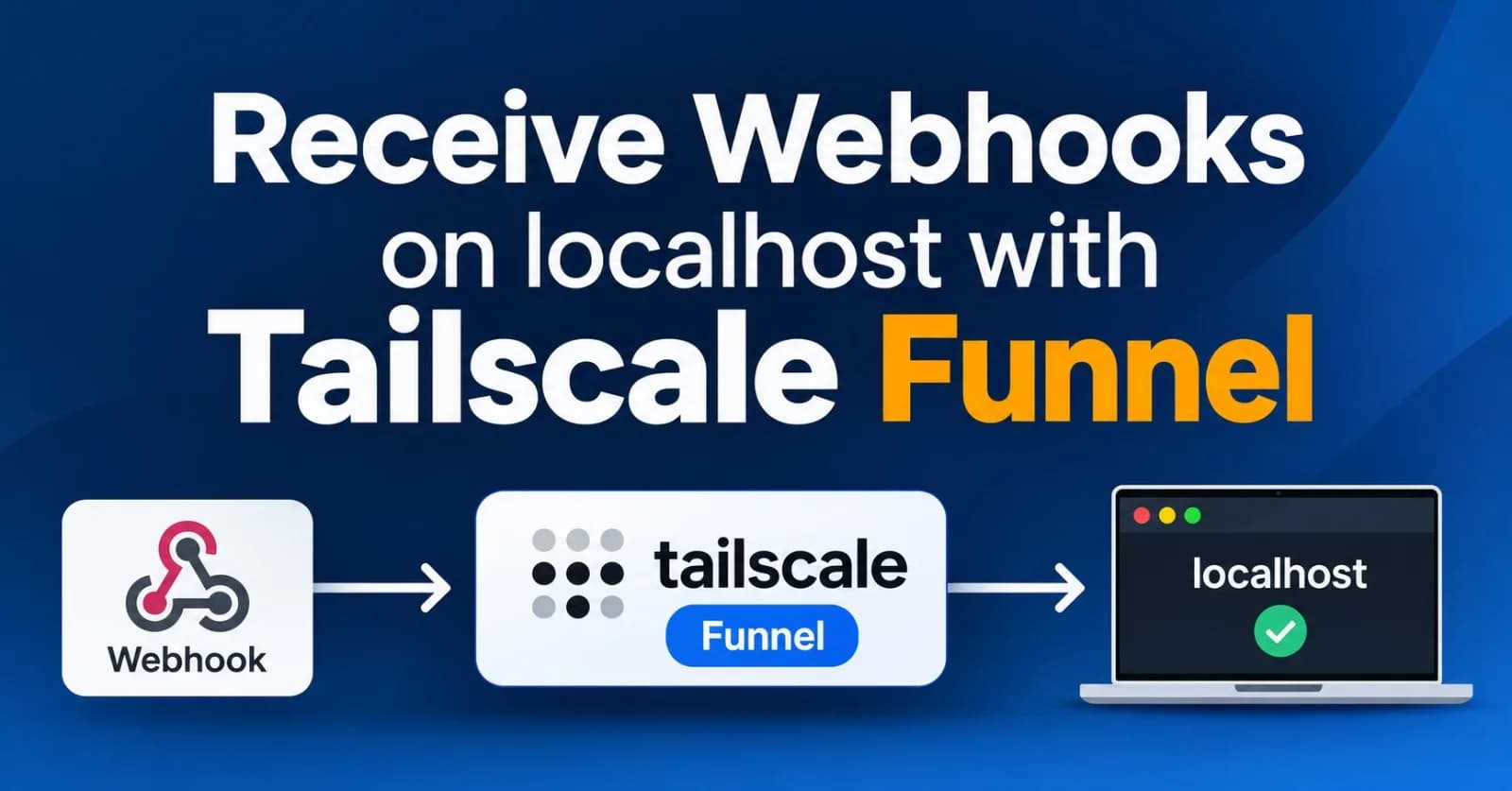
GitHub, Stripe and Razorpay can only deliver webhooks to a public HTTPS URL, and localhost is not one. Tailscale Funnel gives your laptop one with a single command and no VPS. The URL is your machine's tailnet name, so it stays the same between runs and you register the webhook once.
Funnel is in beta and is available on all Tailscale plans. The docs this post relies on were last validated in January 2026.
flowchart LR
    G[GitHub or payment provider] -->|HTTPS POST| R[Funnel relay]
    R -->|encrypted tunnel| T([tailscaled on your laptop])
    T -->|plain HTTP| L[localhost:3000]
One-time setup
You need Tailscale v1.38.3 or later, signed in. In the admin console, open the DNS page, enable MagicDNS, and under HTTPS Certificates select Enable HTTPS. Rename the machine first if its name is sensitive. HTTPS certificates are recorded in a public Certificate Transparency ledger, so your machine name and tailnet name become publicly visible.
The first tailscale funnel command opens a web page asking you to approve Funnel. Once you do, Tailscale creates the certificates and adds a funnel node attribute to your tailnet policy file, which by default lets every member of the tailnet use Funnel. Public DNS can take up to 10 minutes to catch up.
Start the Funnel
tailscale funnel 3000Available on the internet:
https://my-laptop.tailnet-name.ts.net
|-- / proxy http://127.0.0.1:3000
Press Ctrl+C to exit.That runs in the foreground until you press Ctrl+C. Add --bg to keep it running in the background, check it with tailscale funnel status, and shut it down with tailscale funnel reset. Funnel proxies to a service on your own machine, so bind your app to 127.0.0.1.
A receiver that verifies signatures
Funnel puts the service on the public internet, so check every request. This receiver uses only Python's standard library:
import hashlib
import hmac
import json
import os
import time
from http.server import BaseHTTPRequestHandler, ThreadingHTTPServer
from pathlib import Path

SECRET = os.environ["WEBHOOK_SECRET"].encode()
Path("payloads").mkdir(exist_ok=True)


class Handler(BaseHTTPRequestHandler):
    def do_POST(self):
        if self.path != "/webhook":
            return self.reply(404)

        body = self.rfile.read(int(self.headers.get("Content-Length", 0)))
        expected = "sha256=" + hmac.new(SECRET, body, hashlib.sha256).hexdigest()
        received = self.headers.get("X-Hub-Signature-256", "")
        if not hmac.compare_digest(expected.encode(), received.encode()):
            return self.reply(401)

        Path(f"payloads/{time.time_ns()}.json").write_bytes(body)
        print(
            self.headers.get("X-GitHub-Delivery"),
            self.headers.get("X-GitHub-Event"),
            json.loads(body).get("action"),
            flush=True,
        )
        self.reply(200)

    def reply(self, code):
        self.send_response(code)
        self.send_header("Content-Length", "0")
        self.end_headers()

    def log_message(self, *args):
        pass


ThreadingHTTPServer(("127.0.0.1", 3000), Handler).serve_forever()
WEBHOOK_SECRET=change-me python3 receiver.pyGitHub signs each delivery with an HMAC-SHA256 of the raw request body, sent as
sha256=plus a hex digest in theX-Hub-Signature-256header. The receiver recomputes it and compares in constant time. Always verify the raw bytes before parsing JSON, because re-serializing parsed JSON can change them.Every verified body is saved to
payloads/, so you can replay it while you work on your handler.GitHub treats a delivery as failed if it gets no 2xx response within 10 seconds. In a real handler, acknowledge first and do slow work in the background.
Point GitHub at it
In the repository (or organization) settings, open Webhooks and select Add webhook, then set:
Payload URL:
https://my-laptop.tailnet-name.ts.net/webhookContent type:
application/jsonSecret: the same value as
WEBHOOK_SECRETSSL verification: leave it enabled
Events: only the ones you need
GitHub sends a ping event as soon as you save, and its result shows in the webhook's Recent Deliveries tab. Each delivery carries X-GitHub-Event and X-GitHub-Delivery headers, and the delivery ID is what you deduplicate on. GitHub does not retry failed deliveries automatically, so redeliver one from Recent Deliveries after you fix your code.
Replay a saved payload
f=payloads/<file>.json
sig="sha256=$(openssl dgst -sha256 -hmac "$WEBHOOK_SECRET" -r < "$f" | cut -d' ' -f1)"
curl -X POST http://127.0.0.1:3000/webhook \
  -H "X-Hub-Signature-256: $sig" -H "X-GitHub-Event: push" \
  --data-binary @"$f"
This re-signs the saved body and sends it straight to localhost, so you can rerun your handler without touching GitHub or the Funnel.
Payment webhooks
Stripe signs each request with a
Stripe-Signatureheader and awhsec_signing secret. Verification needs the raw body, so use Stripe's library and make sure your framework does not alter the body. Registered endpoints must be public HTTPS URLs, which is where Funnel helps. If you only need to test your handler,stripe listen --forward-to localhost:4242/webhookforwards events to localhost with no public URL. It prints its own signing secret for that session.Razorpay sends
X-Razorpay-Signature, an HMAC-SHA256 of the raw body keyed with your webhook secret, and a uniquex-razorpay-event-idheader for each event. Events can arrive twice or out of order, so deduplicate on the event ID and do not assumepayment.authorizedalways comes beforepayment.captured. Razorpay's docs block many tunnelling domains as webhook URLs, includingngrok.ioandloca.lt, and suggestzrokinstead, so check that it accepts yourts.netURL when you save the webhook. Use Test mode while you develop.
Limits and gotchas
Ports and protocol. Funnel listens publicly only on ports 443, 8443 and 10000 (choose one with
--https), only over TLS, and only on your tailnet'sts.netname.Bandwidth is capped, and the limit is not configurable. That is fine for webhooks but not for large transfers.
macOS. Tailscale's docs say forwarding a port works with the App Store or Standalone app, while sharing files or directories needs the open-source
tailscaledvariant. The same page also says Funnel on macOS needs an open-source variant, so iftailscale funnelfails, check which variant you installed.Certificate rate limits. The certificates come from Let's Encrypt, and requesting new ones too often can exceed its rate limits and leave you waiting about 34 hours.
One mode per port. A port cannot be Serve (tailnet only) and Funnel (public) at the same time. Whichever command ran last wins.
Your laptop must be awake and online. Deliveries fail while it is not, and providers differ on whether they retry.
Turn it off when you finish with
tailscale funnel reset.
Where to start
Run tailscale funnel 3000, start the receiver, and add a webhook to a throwaway repository. The ping event confirms the whole path in about a minute.
Comments0
Join the discussion by logging into your account.
No comments yet. Start the conversation.