
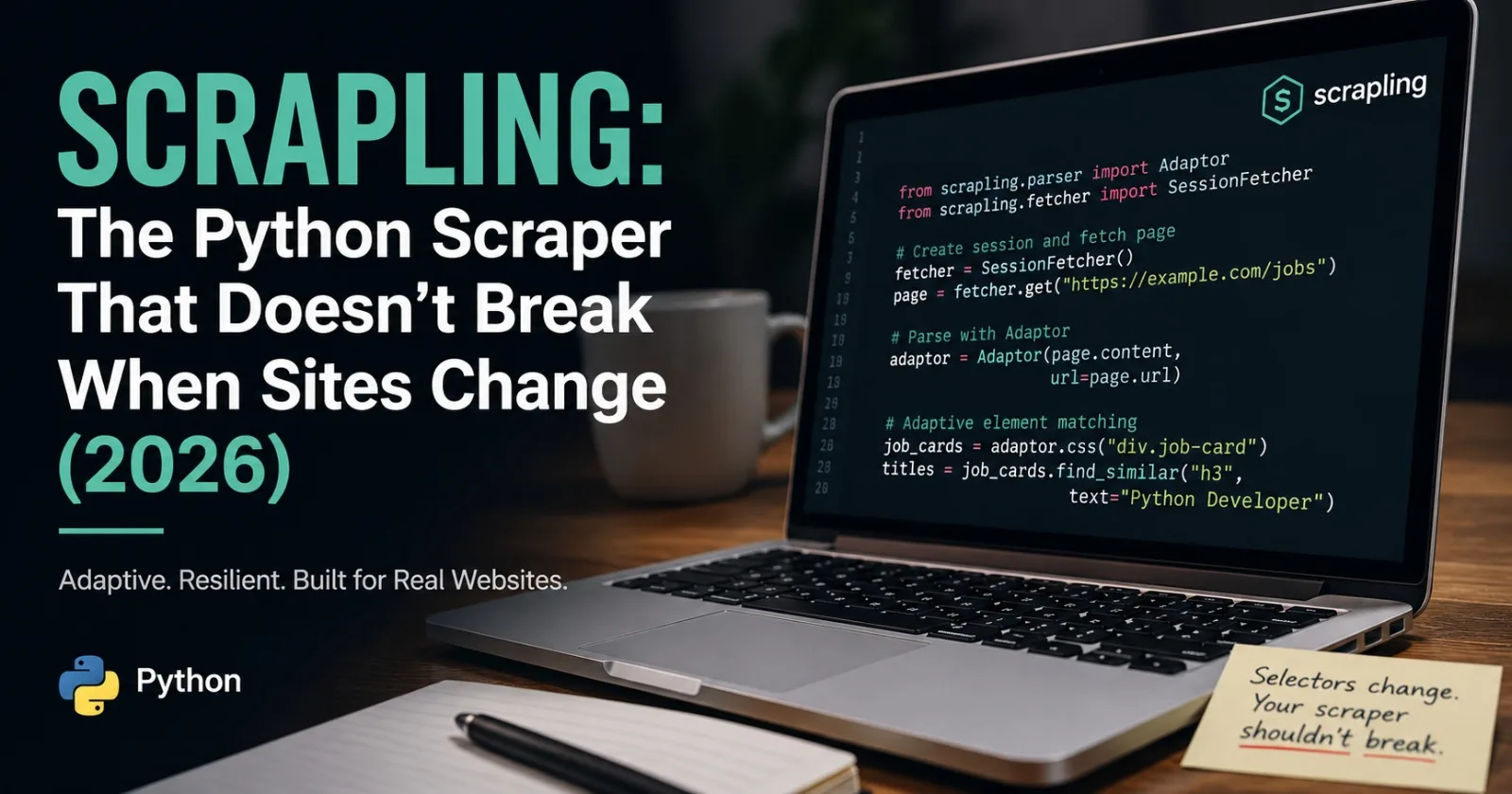
The Problem Every Python Scraper Has
You spend a Tuesday afternoon writing a scraper. CSS selectors, BeautifulSoup, a loop, a CSV export. It works perfectly.
You come back three weeks later. The data is missing. The site redesigned. The class .product-price is now .price-display. Your soup.select_one(".product-price") returns None across all 50,000 URLs you were monitoring.
This is not an edge case. It is the normal lifecycle of every production scraper. D4Vinci/Scrapling — Python web scraper that adapts when sites change, so your data collection keeps working.
Scrapling is the answer to this problem. Instead of finding elements by their exact CSS class — which breaks the moment a developer renames it — Scrapling finds elements by their structural position and visual role in the document. The class name is a hint, not the whole answer. When the hint changes, Scrapling adapts.
By GitHub stars: Firecrawl (131k+), Playwright (90.2k+), Crawl4AI (68.2k+), Scrapy (62.1k+). Scrapling has been growing fast precisely because it solves the problem that every scraper maintainer hates most.
This guide shows you the whole library — the parsing layer (Adaptor), the killer adaptive features (find_similar, auto-generated selectors), and how Scrapling's fetchers handle real websites.
Installation
pip install scrapling curl_cffi
curl_cffi is required by Scrapling's fetchers for TLS fingerprint impersonation. Install both together.
Part 1: The Adaptor — Scrapling's HTML Parser
The Adaptor is Scrapling's HTML parsing layer. Think of it as BeautifulSoup with a smarter element model and additional methods for adaptive scraping.
from scrapling.parser import Adaptor

html = """
<html><body>
  <div class="job-card" data-id="101">
    <h3 class="job-title">Senior Python Developer</h3>
    <span class="company">Infosys</span>
    <span class="location">Bangalore</span>
    <span class="salary">Rs. 18–25 LPA</span>
    <span class="tag">Python</span>
    <span class="tag">Django</span>
    <a href="/jobs/101" class="apply-btn">Apply Now</a>
  </div>
  <div class="job-card" data-id="102">
    <h3 class="job-title">Data Scientist</h3>
    <span class="company">TCS</span>
    <span class="location">Hyderabad</span>
    <span class="salary">Rs. 15–22 LPA</span>
    <span class="tag">Python</span>
    <span class="tag">ML</span>
    <a href="/jobs/102" class="apply-btn">Apply Now</a>
  </div>
</body></html>
"""

# Create an Adaptor — pass the HTML and the source URL
# The URL is used for resolving relative links and for the auto-trained model
page = Adaptor(html, url="https://techjobs.example.com")
Selecting elements
Scrapling supports CSS selectors and XPath:
# CSS selectors — returns a Selectors list
titles = page.css("h3.job-title")
print([t.text for t in titles])
# ['Senior Python Developer', 'Data Scientist']

# XPath — same return type
titles_xpath = page.xpath("//h3[@class='job-title']")
print([t.text for t in titles_xpath])
# ['Senior Python Developer', 'Data Scientist']

# find_all by tag — like BeautifulSoup's find_all
items = page.find_all("span")
print(f"Found {len(items)} spans")
Getting values out
# .text — the element's visible text content
title_el = page.css("h3.job-title")[0]
print(title_el.text)   # Senior Python Developer

# .html — the element's outer HTML
print(title_el.html)   # <h3 class="job-title">Senior Python Developer</h3>

# .attrib — dict-like attribute access (never raises KeyError)
card = page.css("div.job-card")[0]
print(card.attrib["data-id"])          # 101
print(card.attrib.get("data-missing"))  # None — safe access

# Link href
link = page.css("a.apply-btn")[0]
print(link.attrib["href"])   # /jobs/101

# All text in a container (concatenates all descendant text nodes)
card_text = card.get_all_text(separator=" ")
print(card_text[:60])   # Senior Python Developer Infosys Bangalore Rs. 18...
extract() and extract_first()
These return the raw HTML string of matched elements — useful when you need to re-parse a sub-section:
# extract_first() → the first match as an HTML string
first_title_html = page.css("h3.job-title").extract_first()
print(first_title_html)   # <h3 class="job-title">Senior Python Developer</h3>

# extract() → list of all matches as HTML strings
all_price_html = page.css("span.salary").extract()
print(all_price_html)
# ['<span class="salary">Rs. 18–25 LPA</span>',
#  '<span class="salary">Rs. 15–22 LPA</span>']
Nested selection
You can run CSS selectors on individual elements, not just the whole page:
jobs = []
for card in page.css("div.job-card"):
    job = {
        "id":       card.attrib.get("data-id"),
        "title":    card.css("h3.job-title")[0].text,
        "company":  card.css("span.company")[0].text,
        "location": card.css("span.location")[0].text,
        "salary":   card.css("span.salary")[0].text,
        "tags":     [t.text for t in card.css("span.tag")],
        "link":     card.css("a.apply-btn")[0].attrib["href"],
    }
    jobs.append(job)

for j in jobs:
    print(f"  [{j['id']}] {j['title']} @ {j['company']} — {j['salary']}")
    print(f"       {', '.join(j['tags'])}")
Traversal
# children — iterate direct child elements
ul_html = "<ul><li>Item A</li><li>Item B</li><li>Item C</li></ul>"
page2   = Adaptor(ul_html, url="https://example.com")
ul      = page2.css("ul")[0]

for child in ul.children:
    if hasattr(child, "text"):
        print(child.text)   # Item A, Item B, Item C

# find_ancestor — walk up the tree with a test function
html3   = "<table><tr><td class='name'>Alice</td></tr></table>"
page3   = Adaptor(html3, url="https://example.com")
td      = page3.css("td.name")[0]

tr = td.find_ancestor(lambda el: el.tag == "tr")
print(tr.tag)   # tr
Part 2: The Features That Make Scrapling Different
find_similar() — the adaptive core
This is the feature that makes Scrapling special. find_similar() finds all elements on the page that are structurally similar to a given element — same depth, same relationship to siblings and parent, same content type — even if their CSS class has changed.
html = """
<table>
  <tr><td class="name">Alice</td><td class="age">30</td></tr>
  <tr><td class="name">Bob</td>  <td class="age">25</td></tr>
  <tr><td class="name">Carol</td><td class="age">35</td></tr>
</table>
"""
page = Adaptor(html, url="https://example.com")

# Get only the FIRST name cell by selector
first_name = page.css("td.name")[0]
print("First:", first_name.text)   # Alice

# find_similar() finds the other name-like cells by structural position
# — NOT by class name. If "td.name" becomes "td.member-name" tomorrow,
# this still works.
similar = first_name.find_similar()
print("Similar:", [s.text for s in similar])   # ['Bob', 'Carol']
The practical workflow this enables: identify the first example of the element you want, then call find_similar() to get all others. If the site redesigns and changes class names, find_similar() still finds them by structural position.
find_by_text() — locate elements by content
html = """
<div class="card">
  <h2>Product Overview</h2>
  <p class="desc">A quality product designed for professionals.</p>
  <button class="cta-btn">Buy Now</button>
</div>
"""
page = Adaptor(html, url="https://example.com")

# Find an element by its exact text
btn = page.find_by_text("Buy Now")
print(btn.text)   # Buy Now
print(btn.tag)    # button

# Find by partial text
desc = page.find_by_text("quality product", partial=True)
print(desc.text)   # A quality product designed for professionals.
Auto-generated selectors — never write a selector manually again
Scrapling can generate a CSS selector or XPath expression for any element it finds. Use this to discover selectors rather than hunting through DevTools:
html = """
<nav class="main-nav">
  <ul>
    <li><a href="/" class="nav-link">Home</a></li>
    <li><a href="/pricing" class="nav-link">Pricing</a></li>
    <li><a href="/about" class="nav-link">About</a></li>
  </ul>
</nav>
"""
page = Adaptor(html, url="https://example.com")

pricing_link = page.find_by_text("Pricing")
print("CSS selector:", pricing_link.generate_css_selector)
# body > nav > ul > li:nth-child(2) > a

print("XPath:",        pricing_link.generate_xpath_selector)
# //body/nav/ul/li[2]/a

print("Full CSS:",     pricing_link.generate_full_css_selector)
# html > body > nav > ul > li:nth-child(2) > a
Use case: you're scraping a new site and aren't sure what selectors to use. Run find_by_text() on known content, then call generate_css_selector to get the precise selector to use in your production code.
Part 3: Fetching Pages with Scrapling
The Adaptor alone is a parser — you bring the HTML. Scrapling also ships three fetcher classes that handle the HTTP layer and return Adaptor objects directly.
Fetcher — fast HTTP, no browser
Fetcher uses httpx under the hood. Good for simple server-rendered pages with no anti-bot protection.
from scrapling.fetchers import Fetcher

fetcher = Fetcher(auto_match=True)   # auto_match enables adaptive matching

# fetch() returns an Adaptor object — parse it immediately
page = fetcher.get(
    "https://books.toscrape.com/",
    timeout=20,
    stealthy_headers=True,   # Add realistic browser headers automatically
)

# Use Adaptor methods on the result
titles = page.css("h3 a")
for t in titles[:5]:
    print(t.attrib.get("title", t.text))
StealthyFetcher — TLS impersonation
StealthyFetcher uses curl_cffi to impersonate real browser TLS fingerprints. Use this for sites that check JA3/TLS fingerprints (Cloudflare, most major e-commerce sites).
from scrapling.fetchers import StealthyFetcher

fetcher = StealthyFetcher(auto_match=True)

page = fetcher.get(
    "https://target-site.com/products",
    timeout=30,
    # Scrapling picks a Chrome impersonation target automatically
)

# Result is still an Adaptor — same API
prices = page.css(".price")
print([p.text for p in prices])
PlayWrightFetcher — full browser rendering
For JavaScript-heavy sites:
from scrapling.fetchers import PlayWrightFetcher

fetcher = PlayWrightFetcher(auto_match=True)

page = fetcher.get(
    "https://spa-site.com/dashboard",
    headless=True,
    network_idle=True,       # Wait for all XHR to complete
    timeout=30,
    disable_resources=True,  # Block images/fonts for speed
)

# Same Adaptor API
data = page.css(".data-table tr")
Part 4: The auto_match System
auto_match=True is Scrapling's most powerful feature — and the one that requires a bit of explanation.
When you use auto_match, Scrapling stores a fingerprint of each element you extract — not just its CSS class, but its position in the DOM tree, its relationship to sibling elements, its text content pattern, and other structural signals. On subsequent runs, if the CSS class has changed, Scrapling uses this fingerprint to locate the element anyway.
from scrapling.fetchers import Fetcher

fetcher = Fetcher(auto_match=True)

# First run: Scrapling fetches the page and learns element fingerprints
page = fetcher.get("https://example.com/products")

# You select by CSS class — Scrapling memorises the element
price = page.css_first(".product-price")
print(price.text)   # Rs. 1,299

# Three weeks later: site redesigns, ".product-price" → ".price-tag"
# Scrapling's auto_match finds the element by structural fingerprint
# Even though the CSS class changed, it still returns the right element
page2 = fetcher.get("https://example.com/products")
price2 = page2.css_first(".product-price")   # Old selector still works!
print(price2.text)   # Rs. 1,299 — correct even after the redesign
This is the real promise of Scrapling: selectors that survive redesigns.
Part 5: A Complete Production Scraper with Scrapling
Let's build a complete working scraper that uses Scrapling's full feature set:
# scrapling_full_example.py
import asyncio
import pandas as pd
from scrapling.parser import Adaptor

# We use Adaptor with pre-fetched HTML for this example
# In production, replace with StealthyFetcher.get() or PlayWrightFetcher.get()

SAMPLE_PAGE_HTML = """<!DOCTYPE html>
<html>
<head><title>Tech Products — Store</title></head>
<body>
  <h1 class="page-heading">Latest Products</h1>
  <div class="product-grid">

    <article class="product-card" data-sku="WGT-001">
      <h2 class="product-name">Wireless Keyboard Pro</h2>
      <div class="pricing">
        <span class="current-price">Rs. 3,499</span>
        <span class="original-price">Rs. 4,999</span>
        <span class="discount-badge">30% off</span>
      </div>
      <ul class="feature-list">
        <li>Bluetooth 5.2</li>
        <li>Multi-device pairing</li>
        <li>12-month battery</li>
      </ul>
      <div class="meta">
        <span class="brand">Logitech</span>
        <span class="rating">4.6 ★</span>
        <span class="reviews">2,841 reviews</span>
      </div>
      <a href="/products/WGT-001" class="product-link">View Product</a>
    </article>

    <article class="product-card" data-sku="MNT-002">
      <h2 class="product-name">4K USB-C Monitor</h2>
      <div class="pricing">
        <span class="current-price">Rs. 28,999</span>
        <span class="original-price">Rs. 34,999</span>
        <span class="discount-badge">17% off</span>
      </div>
      <ul class="feature-list">
        <li>4K 27-inch IPS</li>
        <li>USB-C 90W PD</li>
        <li>HDMI 2.1</li>
      </ul>
      <div class="meta">
        <span class="brand">LG</span>
        <span class="rating">4.8 ★</span>
        <span class="reviews">1,204 reviews</span>
      </div>
      <a href="/products/MNT-002" class="product-link">View Product</a>
    </article>

    <article class="product-card" data-sku="HDS-003">
      <h2 class="product-name">ANC Headphones Elite</h2>
      <div class="pricing">
        <span class="current-price">Rs. 12,499</span>
        <span class="original-price">Rs. 15,999</span>
        <span class="discount-badge">22% off</span>
      </div>
      <ul class="feature-list">
        <li>Active Noise Cancellation</li>
        <li>40hr battery</li>
        <li>Hi-Res Audio</li>
      </ul>
      <div class="meta">
        <span class="brand">Sony</span>
        <span class="rating">4.7 ★</span>
        <span class="reviews">5,632 reviews</span>
      </div>
      <a href="/products/HDS-003" class="product-link">View Product</a>
    </article>

  </div>
</body>
</html>"""


def scrape_products(html: str, source_url: str) -> list[dict]:
    """
    Parse product cards from a page using Scrapling.
    Demonstrates: nested css(), .text, .attrib, find_similar(), find_by_text()
    """
    page     = Adaptor(html, url=source_url)
    products = []

    for card in page.css("article.product-card"):
        sku        = card.attrib.get("data-sku", "")
        name       = card.css("h2.product-name")[0].text

        # Pricing block
        price_curr = card.css("span.current-price")[0].text
        price_orig = card.css("span.original-price")[0].text
        discount   = card.css("span.discount-badge")[0].text

        # Features — list items
        features = [li.text for li in card.css("ul.feature-list li")]

        # Meta
        brand    = card.css("span.brand")[0].text
        rating   = card.css("span.rating")[0].text
        reviews  = card.css("span.reviews")[0].text

        # Link
        link     = card.css("a.product-link")[0].attrib["href"]

        # Clean price to float
        import re
        price_float = float(re.sub(r"[^\d]", "", price_curr))

        products.append({
            "sku":           sku,
            "name":          name,
            "price":         price_float,
            "price_display": price_curr,
            "original":      price_orig,
            "discount":      discount,
            "features":      ", ".join(features),
            "brand":         brand,
            "rating":        rating,
            "reviews":       reviews,
            "url":           link,
        })

    return products


def demonstrate_adaptive_features(html: str):
    """
    Show Scrapling's key adaptive features:
    find_similar(), find_by_text(), auto-generated selectors
    """
    page = Adaptor(html, url="https://store.example.com")

    print("\n── find_similar() ──")
    # Get the first product name
    first_name = page.css("h2.product-name")[0]
    print(f"First product: {first_name.text}")

    # find_similar finds the other product names by structural position
    # This works even after CSS class renames
    similar = first_name.find_similar()
    print(f"Similar elements found: {[s.text for s in similar]}")

    print("\n── find_by_text() ──")
    # Locate element by its text content — class-independent
    sony_brand = page.find_by_text("Sony")
    if sony_brand:
        print(f"Found 'Sony' in: <{sony_brand.tag}> element")
        # Walk up to get the parent product card
        parent_card = sony_brand.find_ancestor(lambda el: el.tag == "article")
        if parent_card:
            product_name = parent_card.css("h2")[0].text
            print(f"  → Parent product: {product_name}")

    print("\n── find_by_text() partial match ──")
    anc_el = page.find_by_text("Noise Cancellation", partial=True)
    if anc_el:
        print(f"Partial match: '{anc_el.text}'")

    print("\n── Auto-generated selectors ──")
    # Let Scrapling generate the selector for any element
    first_discount = page.css("span.discount-badge")[0]
    print(f"CSS selector: {first_discount.generate_css_selector}")
    print(f"XPath:        {first_discount.generate_xpath_selector}")

    print("\n── get_all_text() ──")
    first_card = page.css("article.product-card")[0]
    all_text   = first_card.get_all_text(separator=" | ")
    print(f"All text in first card: {all_text[:120]}...")


def main():
    print("=" * 55)
    print("  SCRAPLING DEMO")
    print("=" * 55)

    # Scrape products
    products = scrape_products(SAMPLE_PAGE_HTML, "https://store.example.com")

    print(f"\nScraped {len(products)} products:\n")
    df = pd.DataFrame(products)
    print(df[["sku", "name", "price", "discount", "brand", "rating"]].to_string(index=False))

    # Analysis
    print(f"\nAverage price: Rs. {df['price'].mean():,.0f}")
    print(f"Most expensive: {df.loc[df['price'].idxmax(), 'name']} "
          f"(Rs. {df['price'].max():,.0f})")
    print(f"Cheapest: {df.loc[df['price'].idxmin(), 'name']} "
          f"(Rs. {df['price'].min():,.0f})")

    # Demonstrate adaptive features
    demonstrate_adaptive_features(SAMPLE_PAGE_HTML)

    # Save
    df.to_csv("scrapling_products.csv", index=False)
    print("\n✓ Data saved to scrapling_products.csv")


if __name__ == "__main__":
    main()
Output:
=======================================================
  SCRAPLING DEMO
=======================================================

Scraped 3 products:

     sku                    name     price discount    brand  rating
 WGT-001    Wireless Keyboard Pro    3499.0   30% off Logitech  4.6 ★
 MNT-002          4K USB-C Monitor  28999.0   17% off       LG  4.8 ★
 HDS-003     ANC Headphones Elite   12499.0   22% off     Sony  4.7 ★

Average price: Rs. 14,999
Most expensive: 4K USB-C Monitor (Rs. 28,999)
Cheapest: Wireless Keyboard Pro (Rs. 3,499)

── find_similar() ──
First product: Wireless Keyboard Pro
Similar elements found: ['4K USB-C Monitor', 'ANC Headphones Elite']

── find_by_text() ──
Found 'Sony' in: <span> element
  → Parent product: ANC Headphones Elite

── find_by_text() partial match ──
Partial match: 'Active Noise Cancellation'

── Auto-generated selectors ──
CSS selector: body > div > article > div > span:nth-child(3)
XPath:        //body/div/article/div/span[3]

── get_all_text() ──
All text in first card: Wireless Keyboard Pro | Rs. 3,499 | Rs. 4,999 | 30% off...

✓ Data saved to scrapling_products.csv
Part 6: Scrapling vs BeautifulSoup — Honest Comparison
Feature | BeautifulSoup | Scrapling |
|---|---|---|
Syntax simplicity | ⭐⭐⭐⭐⭐ | ⭐⭐⭐⭐ |
CSS selectors | ✅ | ✅ |
XPath | ❌ (needs lxml directly) | ✅ |
find_by_text | Basic | Advanced with partial match |
find_similar | ❌ | ✅ (unique to Scrapling) |
Auto-selectors | ❌ | ✅ |
Auto-match on redesign | ❌ | ✅ |
Built-in fetchers | ❌ | ✅ (3 fetcher types) |
TLS impersonation | ❌ | ✅ (via StealthyFetcher) |
Speed | Fast | Slightly slower |
Documentation | Excellent | Good, growing |
Community | Enormous | Rapidly growing |
When to use BeautifulSoup: You're scraping a stable site, you're a beginner, or you're teaching someone else.
When to use Scrapling: You're scraping sites that change frequently, you want built-in fetchers with anti-detection, or you're tired of maintaining selector lists.
Part 7: Working with Scrapling's Fetchers in Production
# production_fetcher_example.py
from scrapling.fetchers import StealthyFetcher
import time
import random

def scrape_with_retry(url: str, max_retries: int = 3) -> object | None:
    """
    Production-safe wrapper around StealthyFetcher.
    Handles retries and errors gracefully.
    """
    fetcher = StealthyFetcher(auto_match=True)

    for attempt in range(max_retries):
        try:
            page = fetcher.get(
                url,
                timeout        = 25,
                stealthy_headers=True,    # Scrapling adds realistic headers
                hide_browser   = True,    # Additional stealth for PlayWright
            )
            return page

        except Exception as e:
            wait = (2 ** attempt) + random.uniform(0, 1)
            print(f"  Attempt {attempt+1} failed: {e}. Retrying in {wait:.1f}s")
            time.sleep(wait)

    print(f"  Permanently failed: {url}")
    return None


# Example multi-page scrape
def scrape_catalog(base_url: str, pages: int = 5) -> list[dict]:
    all_products = []

    for page_num in range(1, pages + 1):
        url  = f"{base_url}?page={page_num}"
        page = scrape_with_retry(url)

        if not page:
            continue

        # Adaptive scraping — if class names change between pages,
        # find_similar() on first result finds all counterparts
        first_price = page.css(".price, .product-price, .current-price")
        if not first_price:
            print(f"  No prices found on page {page_num}")
            continue

        # find_similar adapts to whatever the price class is on this page
        all_prices = first_price[0].find_similar()
        all_names  = page.css("h2, h3").extract()

        print(f"  Page {page_num}: {len(all_prices)} prices, {len(all_names)} names")
        time.sleep(random.uniform(1.5, 3.0))

    return all_products
Common Pitfalls and Fixes
css_first() doesn't exist — use css()[0]
# Wrong — AttributeError
item = page.css_first(".price")

# Right
item = page.css(".price")[0] if page.css(".price") else None
extract() returns HTML strings, not text
# extract() returns '<span class="price">Rs. 999</span>'
raw = page.css(".price").extract()

# For clean text, iterate and use .text
texts = [el.text for el in page.css(".price")]
find_ancestor() takes a callable, not a string
# Wrong
parent = el.find_ancestor("div")

# Right
parent = el.find_ancestor(lambda e: e.tag == "div")
parent = el.find_ancestor(lambda e: "card" in (e.attrib.get("class") or ""))
Summary
Concept | Method | Example |
|---|---|---|
Parse HTML |
| Build the page object |
CSS select all |
| Returns Selectors list |
CSS select one |
| First match |
Element text |
| Clean inner text |
Attribute |
| Safe dict access |
All text |
| Concatenated descendants |
Tag name |
|
|
Outer HTML |
|
|
XPath |
| Same return type as css() |
Find by text |
| Class-independent search |
Partial match |
| Substring search |
Find similar |
| Adaptive structural match |
Walk up tree |
| Callable test |
Auto CSS |
| Discover selectors |
Auto XPath |
| Discover selectors |
Children |
| Direct child iterator |
Raw HTML list |
| HTML strings |
First raw HTML |
| First HTML string |
Comments(0)
Join the discussion by logging into your account.
No comments yet. Be the first to comment!