
Public Wi-Fi is convenient, but connecting your laptop to an unfamiliar network introduces security risks. Whether you're working from a coffee shop, travelling, or accessing a production server from a hotel, you probably don't want to depend entirely on a network you don't control.
Commercial VPN services address this problem, but they introduce another dependency: you have to trust a third-party provider with your VPN infrastructure. There is another option that gives you more control. You can build your own private VPN using an affordable VPS, an open-source protocol called WireGuard, and a little configuration.
The result is a VPN server that you own and manage. You can connect your laptop, smartphone, and other devices to it, encrypt traffic between your devices and the server, and route your IPv4 internet connection through a consistent public IP address.
Let's build one from scratch.
What Are We Going to Build?
We'll use WireGuard, a modern, lightweight VPN implementation available across Linux, Windows, macOS, Android, and iOS. It uses public/private key pairs to authenticate peers and establish encrypted tunnels, making it relatively straightforward to configure.
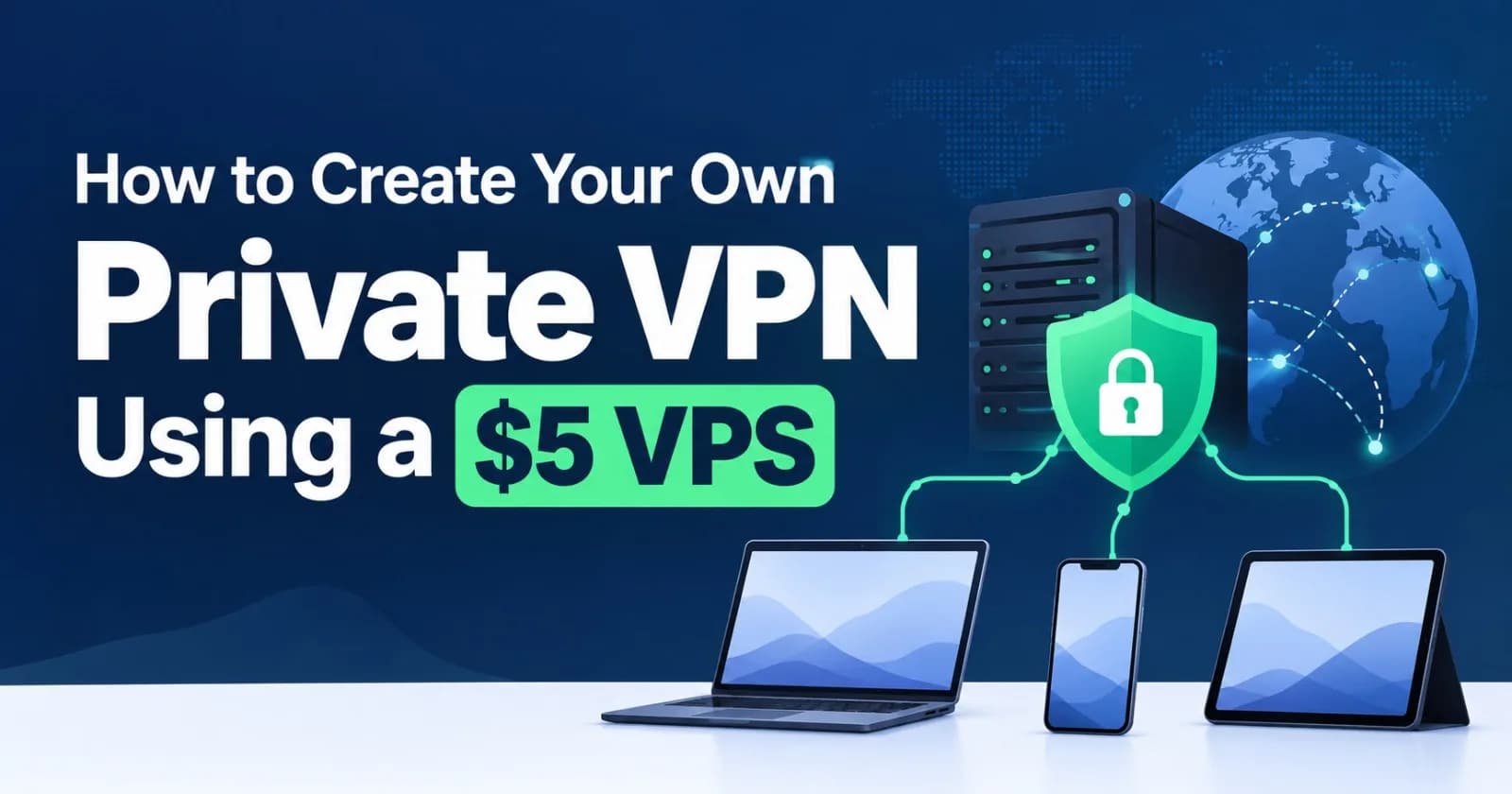
Our VPS will act as the VPN gateway. When a connected device sends internet traffic, WireGuard encrypts it and sends it through a tunnel to the VPS. The server then forwards it to its destination. External services see the VPS's public IPv4 address instead of your device's normal public IPv4 address.
flowchart TB
    A["Laptop"]
    B["Smartphone"]
    C["Tablet"]
    T["Encrypted WireGuard Tunnel"]
    V["Ubuntu VPS<br/>WireGuard Server<br/>Public IPv4"]
    N["Internet"]

    A --> T
    B --> T
    C --> T
    T --> V
    V --> N
This setup is particularly useful for developers who need a consistent outbound IP address for API whitelisting, accessing remote infrastructure, or securely managing services from different networks.
1. What You Need
You don't need a powerful machine for a personal WireGuard server. A small VPS with one virtual CPU, 1.5 GB of RAM, and a public IPv4 address is a reasonable starting point. Two gigabytes provide additional headroom for multiple devices and other lightweight services.
Component | Requirement |
|---|---|
VPS | Any reliable cloud provider |
Operating system | Ubuntu 26.04.1 LTS |
CPU | 1 vCPU |
RAM | 1.5 GB minimum; 2 GB preferred |
Storage | 10–20 GB SSD |
Public IP | One public IPv4 address |
Budget | Low-cost VPS, provider-dependent |
Providers such as Hetzner, DigitalOcean, Vultr, and Linode offer VPS products. Compare their current prices, particularly public IPv4 charges and outbound bandwidth allowances.
You don't need a domain name because WireGuard can connect directly to your VPS's public IP address. The address should remain assigned while you retain the VPS and its IP allocation, although it may change if the instance is deleted or the address is detached.
For this tutorial, we'll assume you have a fresh Ubuntu installation and an administrative SSH account with sudo privileges.
2. Install WireGuard and Generate Server Keys
Connect to your VPS:
ssh YOUR_SSH_USER@YOUR_VPS_IPReplace the username with the administrative account provided by your hosting company. Switch to a root shell:
sudo -iUpdate the system and install WireGuard, UFW, and the QR code utility:
apt update && apt upgrade -y
apt install wireguard-tools ufw qrencode -y
Create the WireGuard configuration directory:
install -d -m 700 /etc/wireguardWireGuard uses public/private key pairs to authenticate devices. Generate the server keys:
umask 077

wg genkey | tee /etc/wireguard/server.key | \
wg pubkey > /etc/wireguard/server.pub
This creates two files:
/etc/wireguard/
    server.key
    server.pub
The private key must remain on the server and should never be shared. The public key can be distributed to devices connecting to it. The umask 077 command ensures that newly created key files are accessible only to their owner.
3. Enable IP Forwarding and Configure the Server
WireGuard establishes the encrypted tunnel, but our VPS must also function as an internet gateway. Linux handles this through IP forwarding, which allows packets received on one network interface to be forwarded through another.
Because we're using UFW, configure forwarding through its sysctl configuration:
nano /etc/ufw/sysctl.confFind the IPv4 forwarding setting and uncomment it. If it doesn't exist, add:
net/ipv4/ip_forward=1Apply the setting:
sysctl -p /etc/ufw/sysctl.confVerify that forwarding is enabled:
sysctl net.ipv4.ip_forwardExpected output:
net.ipv4.ip_forward = 1Before selecting a VPN subnet, make sure it doesn't overlap with your home, office, or existing cloud networks. We'll use 10.8.0.0/24 throughout this tutorial.
Setting | Value |
|---|---|
VPN network | 10.8.0.0/24 |
Server address | 10.8.0.1 |
First client address | 10.8.0.2 |
Listening port | 51820/UDP |
Identify the VPS's outbound network interface:
ip -4 route show default | awk '{print $5; exit}'For this example, assume the result is ens3. Replace it with your actual interface name.
Create the server configuration:
nano /etc/wireguard/wg0.confAdd:
[Interface]
Address = 10.8.0.1/24
ListenPort = 51820
PrivateKey = YOUR_SERVER_PRIVATE_KEY
Replace YOUR_SERVER_PRIVATE_KEY with the contents of /etc/wireguard/server.key.
Restrict access to the configuration:
chmod 600 /etc/wireguard/wg0.conf4. Create Your First VPN Client
Every device needs its own key pair and VPN address. We'll create a separate configuration for a smartphone.
Generate the client keys:
umask 077

wg genkey | tee /etc/wireguard/client1.key | \
wg pubkey > /etc/wireguard/client1.pub
Read the client's public key:
cat /etc/wireguard/client1.pubOpen the server configuration:
nano /etc/wireguard/wg0.confAppend:
[Peer]
# Smartphone
PublicKey = YOUR_CLIENT_PUBLIC_KEY
AllowedIPs = 10.8.0.2/32
Replace the placeholder with the actual client public key.
The /32 assigns the smartphone one unique VPN address. Additional devices will receive different addresses:
Device | VPN address |
|---|---|
Server | 10.8.0.1 |
Smartphone | 10.8.0.2 |
Laptop | 10.8.0.3 |
Tablet | 10.8.0.4 |
Security consideration: This walkthrough generates the smartphone's private key on the VPS for convenience. A stronger approach is to generate the private key directly on the device and transfer only its public key to the server. In either case, protect client configuration files because they contain authentication credentials.
5. Configure the Client Profile
Collect the server's public key and the client's private key:
cat /etc/wireguard/server.pub
cat /etc/wireguard/client1.key
Create a client configuration:
nano /root/client1.confAdd:
[Interface]
PrivateKey = YOUR_CLIENT_PRIVATE_KEY
Address = 10.8.0.2/32
DNS = 1.1.1.1

[Peer]
PublicKey = YOUR_SERVER_PUBLIC_KEY
Endpoint = YOUR_VPS_PUBLIC_IP:51820
AllowedIPs = 0.0.0.0/0
PersistentKeepalive = 25
Replace the placeholders with your actual values.
The important settings are:
PrivateKey: Identifies the client device.Address: Assigns its private VPN address.DNS: Specifies the DNS resolver.PublicKey: Identifies the VPN server.Endpoint: Defines the VPS address and UDP port.AllowedIPs: Routes all IPv4 destinations through the VPN.PersistentKeepalive: Sends periodic packets to maintain NAT mappings, useful on mobile networks and restrictive routers.
Setting AllowedIPs = 0.0.0.0/0 creates a full-tunnel IPv4 configuration.
Important IPv6 limitation: This is an IPv4-only VPN. IPv6 traffic may continue through the device's ordinary network connection, exposing its original IPv6 address. For privacy-sensitive use, configure IPv6 forwarding and routing separately, or enable a client kill switch that blocks traffic outside the VPN. Do not assume this configuration provides complete IPv6 protection.
On Linux clients using wg-quick, the DNS option requires a compatible resolvconf utility. Ubuntu normally uses systemd-resolved instead. For those clients, remove the DNS line and use these directives under [Interface]:
PostUp = resolvectl dns %i 1.1.1.1; resolvectl domain %i '~.'
PostDown = resolvectl revert %i
These commands configure DNS for the VPN interface and revert the interface-specific settings when the tunnel goes down. The standard DNS = 1.1.1.1 option can remain in configurations imported into the official mobile WireGuard applications.
Protect the client configuration:
chmod 600 /root/client1.conf6. Configure the Firewall
WireGuard requires inbound access to UDP port 51820. We'll use UFW as the firewall manager and configure NAT so that connected clients can access the internet through the VPS.
Check the current firewall status:
ufw status verboseThe following instructions assume a fresh VPS where UFW is inactive. If it is already active, integrate the rules with your existing firewall configuration rather than resetting it.
Configure NAT
Back up the UFW rules file:
cp /etc/ufw/before.rules /etc/ufw/before.rules.backupOpen it:
nano /etc/ufw/before.rulesAdd the following NAT block near the top, immediately after the existing header comments and before the *filter section:
# VPN NAT rules
*nat
:POSTROUTING ACCEPT [0:0]
-A POSTROUTING -s 10.8.0.0/24 -o ens3 -j MASQUERADE
COMMIT
Replace ens3 with your actual outbound interface.
If the file already has a *nat section, add the POSTROUTING rule to that existing section instead of creating a duplicate.
The MASQUERADE rule performs source NAT, allowing internet services to send response traffic back to the VPS rather than attempting to route replies to private VPN addresses.
Add Firewall Rules
Before enabling UFW, make sure SSH access is permitted. Otherwise, enabling the firewall could disconnect your current SSH session.
For the standard SSH port:
ufw allow 22/tcpIf you use a custom SSH port, allow that port instead.
Allow inbound WireGuard traffic:
ufw allow 51820/udpAllow VPN clients to forward traffic towards the internet:
ufw route allow in on wg0 out on ens3 from 10.8.0.0/24 to anyReplace ens3 as necessary.
Keep the default routed policy restrictive:
ufw default deny routedThis allows only the forwarding route explicitly configured above rather than permitting unrestricted routed traffic.
For a fresh installation, enable UFW:
ufw enableIf UFW is already active and you've made changes to its configuration files, reload it:
ufw reloadVerify the rules:
ufw status verboseYou should see the SSH rule, WireGuard UDP rule, and VPN routing rule.
If your VPS provider also offers a cloud firewall or security group, allow inbound UDP port 51820 there as well. Both the provider firewall and the server firewall must permit the required traffic.
7. Start the VPN Server
The server configuration, client peer, and firewall rules are ready.
Start WireGuard and enable automatic startup after server reboots:
systemctl enable --now wg-quick@wg0Check the service:
systemctl status wg-quick@wg0Inspect the interface:
wg showYou should see the server's public key, listening port, and configured peer. The VPN server is now ready to accept connections.
8. Connect Your Smartphone or Laptop
The easiest way to configure a smartphone is to import its profile using a QR code.
Generate it from the client configuration:
qrencode -t ansiutf8 < /root/client1.confA QR code will appear directly in your SSH terminal. Open the official WireGuard application on your smartphone, select Add a Tunnel, choose Scan from QR Code, and scan the code displayed in the terminal. Save the configuration and enable the connection.
For a laptop, securely transfer the .conf file and import it into the WireGuard desktop application.
Official downloads:
The QR code contains a private key, so scan it only on a trusted device. Avoid sharing screenshots or leaving configuration files in unnecessary locations. After importing the profile, remove temporary copies if they are no longer required. Remember that deletion does not necessarily remove copies held in server snapshots or backups.
9. Verify the VPN and Add More Devices
Before connecting, check your public IPv4 address:
curl -4 https://api.ipify.orgRecord the result, enable WireGuard, and run the same command again. The returned address should now match your VPS's public IPv4 address.
On the server, check:
wg showA recent handshake and increasing transfer counters indicate that the peers are communicating.
For another device, generate a new key pair:
umask 077

wg genkey | tee /etc/wireguard/laptop.key | \
wg pubkey > /etc/wireguard/laptop.pub
Read its public key:
cat /etc/wireguard/laptop.pubAdd the laptop to /etc/wireguard/wg0.conf:
[Peer]
# Laptop
PublicKey = YOUR_LAPTOP_PUBLIC_KEY
AllowedIPs = 10.8.0.3/32
Create a separate configuration for the laptop:
[Interface]
PrivateKey = YOUR_LAPTOP_PRIVATE_KEY
Address = 10.8.0.3/32
DNS = 1.1.1.1

[Peer]
PublicKey = YOUR_SERVER_PUBLIC_KEY
Endpoint = YOUR_VPS_PUBLIC_IP:51820
AllowedIPs = 0.0.0.0/0
PersistentKeepalive = 25
Import it into the laptop's WireGuard application.
Apply the peer change without unnecessarily interrupting existing connections:
systemctl reload wg-quick@wg0Ubuntu documents this reload method for adding or removing peers. Changes to interface-level options may require a restart instead.
Revoking a Device
If you lose a device or no longer want it to access the VPN, remove its [Peer] section from /etc/wireguard/wg0.conf and apply the updated configuration:
systemctl reload wg-quick@wg0Verify the result:
wg showThe removed peer will no longer be authorized by the active WireGuard configuration.
10. Security, Performance and Troubleshooting
Keep Ubuntu and WireGuard updated, use SSH keys, restrict exposed ports, and maintain separate credentials for every device. A connected VPN client can potentially access resources on the remote network if firewall rules permit it, so avoid adding broad forwarding rules that unintentionally expose private services.
A VPN connection can also drop unexpectedly. On supported platforms, enable always-on VPN or a kill switch to block connections outside the tunnel. This is especially useful on public networks when you need to prevent traffic from falling back to your normal internet connection.
Remember that WireGuard encrypts traffic between your device and the VPS, but traffic exits that encrypted tunnel at the VPS. Your hosting provider can observe network metadata, and unencrypted application traffic may be visible along its route. HTTPS continues to protect application-level traffic, but a self-hosted VPN does not make you anonymous or prevent website tracking.
Common troubleshooting checks:
Problem | What to check |
|---|---|
VPN cannot connect | Provider and host firewalls; UDP 51820 |
No recent handshake | Endpoint IP, keys and UDP connectivity |
Connected but no internet | IP forwarding, UFW routing and NAT |
DNS resolution fails | Client DNS configuration |
Some websites fail | MTU, DNS and IPv6 routing |
VPN stops after reboot | Systemd service status |
VPN is unusually slow | VPS location, CPU and bandwidth |
Useful diagnostic commands:
systemctl status wg-quick@wg0
journalctl -u wg-quick@wg0 -n 100 --no-pager
wg show
sysctl net.ipv4.ip_forward
ufw status verbose
iptables -t nat -L POSTROUTING -n -v
If the tunnel has no handshake, investigate the endpoint, keys, and firewall rules first. If the handshake works but internet access fails, inspect forwarding, the UFW routing rule, the outbound interface name, and the masquerading rule.
For additional DNS checks, visit dnsleaktest.com. Remember that this does not test whether IPv6 traffic is leaking outside an IPv4-only tunnel.
11. How Much Does It Cost?
The VPS itself is the main expense. WireGuard is open-source software, Ubuntu is available without a licensing fee, and the supporting utilities are free.
Component | Cost |
|---|---|
Small VPS | Provider-dependent |
WireGuard | Free |
Ubuntu | Free |
Configuration tools | Free |
Domain name | Not required |
Additional WireGuard device licences | None |
The actual monthly cost depends on the hosting provider, public IPv4 charges, bandwidth allowance, and additional transfer fees. A low-cost VPS is usually sufficient for personal browsing and development work, but heavy streaming or large downloads can consume bandwidth quickly.
All connected devices share the VPS's available CPU, network capacity, and monthly transfer allowance. Choose a server location close to where you normally use the VPN for better latency.
Final Thoughts
Building your own VPN is a practical way to learn networking while creating something useful for everyday development work. With a small VPS and WireGuard, you can establish an encrypted connection to infrastructure you control, connect multiple devices, and route IPv4 traffic through a consistent public IP address.
It won't replace every commercial VPN service, and it won't automatically make you anonymous. However, for developers who want control over their VPN endpoint, need a stable outbound IP, or regularly work from untrusted networks, it's an affordable and useful addition to their infrastructure.
One small VPS, one WireGuard installation, and a few configuration files are enough to get started.
Comments(0)
Join the discussion by logging into your account.
No comments yet. Be the first to comment!