
Imagine you're working on a client's production website. They have given you access to an admin panel, but their security policy requires your public IP address to be whitelisted.
You provide your current IP, everything works, and development begins.
Then your home router restarts.
Your internet connection comes back, your ISP assigns you a different public IP, and suddenly you can no longer access the client's system.
You contact the client, request another whitelist update, and wait for access to be restored.
It is a small problem, but it can repeatedly interrupt your work.
I ran into this exact challenge and already had a VPS available. Instead of purchasing a static IP from my home internet provider, I used that VPS as a VPN exit node with Tailscale.
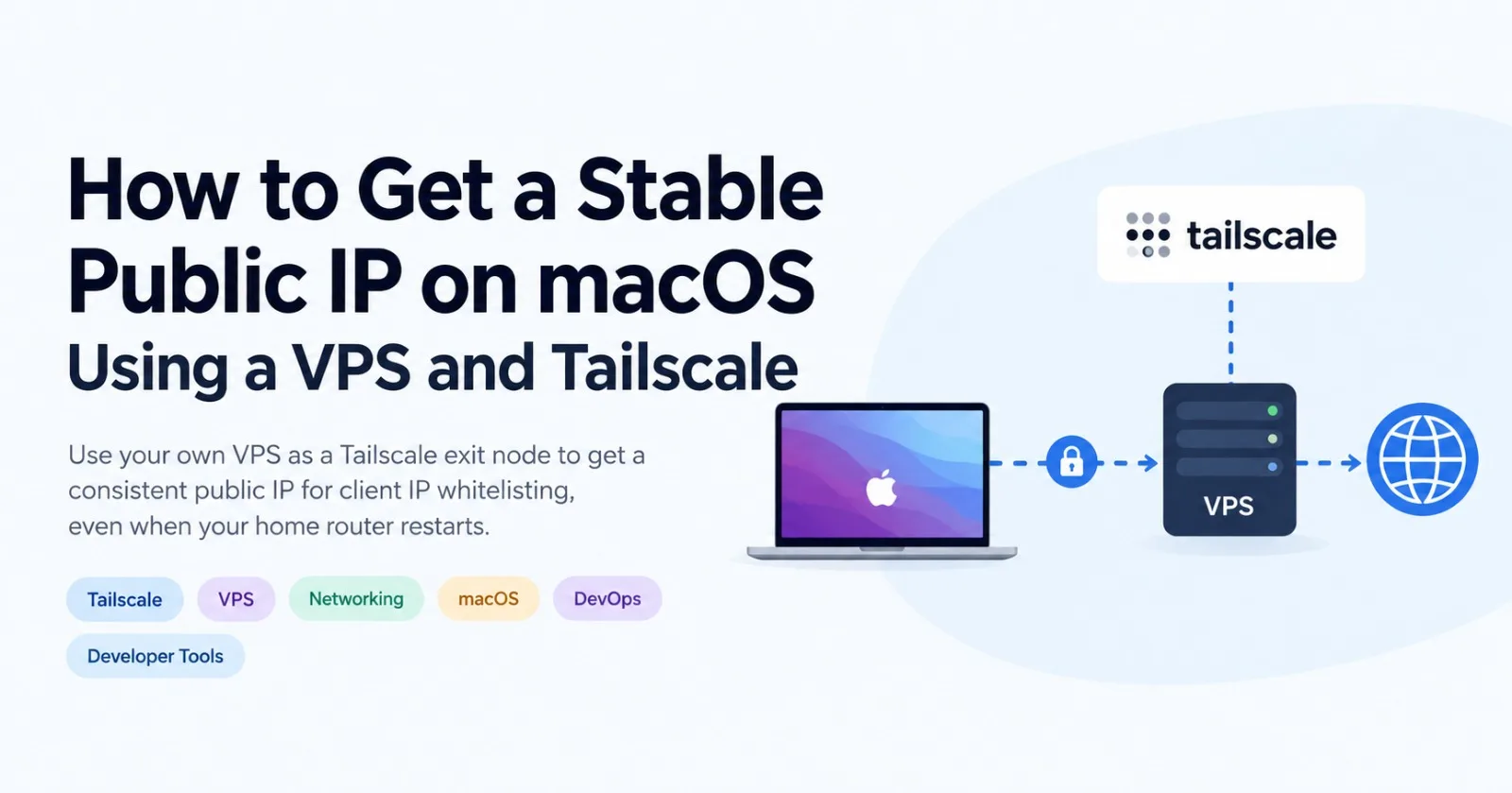
The result: my Mac could access the internet through the VPS, allowing the client to see the VPS's public IP rather than my changing home IP.
This article explains how the setup works, how to configure it, and the mistake that can prevent it from working even when everything appears to be connected.
The problem with dynamic IP addresses
Most residential internet connections do not guarantee a permanently assigned public IP address. Depending on the ISP and connection, the address may change after a router restart, a reconnection, or a network-side change.
This becomes inconvenient when a client uses IP allowlisting.
An allowlist is a security mechanism that permits requests from specified IP addresses. If your client's firewall allows only your previous public IP, requests from your new address may be rejected.
Common examples include:
Client websites and administrative dashboards
Production servers and SSH access
APIs protected by IP restrictions
Databases and infrastructure management interfaces
You could ask your ISP for a static IP, but that may involve additional cost, availability restrictions, or a change to your internet plan.
Another option is to use a VPS you already own.
The solution: Use your VPS as an exit node
The key idea is straightforward: instead of connecting directly to the client's website, route your internet traffic through a VPS with a persistent public IP address.
Tailscale makes this possible through its exit node feature.
An exit node is a device that forwards your internet traffic to its destination. In this setup, your VPS becomes the internet gateway for your Mac.
Architecture
flowchart TD
    A["Your Mac<br/>macOS + Tailscale"]
    B["Encrypted Tailscale tunnel"]
    C["Your VPS<br/>Persistent public IPv4"]
    D["Client website or admin panel"]
    A --> B --> C --> D
    C -. "Public source IP" .-> D
The connection works like this:
Your Mac connects to Tailscale.
Tailscale establishes an encrypted connection to your VPS.
Your Mac sends its public internet traffic through the VPS.
The VPS forwards the requests to the destination.
The destination sees the VPS's public IP address as the source of the connection.
Your laptop's local network and your home's public IP no longer determine the source IPv4 address seen by the client, as long as the traffic is actually routed through the exit node.
When your home router restarts, Tailscale can reconnect over the new internet connection. Your client-facing public IP remains the VPS's address, provided the VPS continues to use the same public IPv4 address.
Important distinction: Tailscale does not give you a static public IP. Your VPS supplies that address; Tailscale routes your traffic through it.
What you need
Before starting, make sure you have:
A Linux VPS running Ubuntu or Debian.
A public IPv4 address that your VPS provider keeps assigned across reboots.
Administrative access to the VPS.
A Mac running macOS.
A Tailscale account that you can use on both devices.
The examples below use Linux commands for the VPS and macOS for the client machine.
Step 1: Check the VPS public IP
Connect to your VPS over SSH and run:
curl -4 https://ifconfig.me && echoThis checks the public IPv4 address used for outbound connections from the VPS.
Suppose the result is:
YOUR_VPS_PUBLIC_IPRecord the actual address returned by your server.
Also check your VPS provider's control panel. Make sure the public IP is persistent or reserved rather than an address that may be reassigned when the server is stopped or recreated.
This distinction matters: a working exit node cannot guarantee a stable IP if the underlying VPS address itself changes.
Step 2: Install Tailscale on the VPS
If Tailscale is not already installed, use its official Linux installation instructions:
https://tailscale.com/docs/install/linux
For Ubuntu or Debian, the standard installation command is:
curl -fsSL https://tailscale.com/install.sh | shEnable the daemon:
sudo systemctl enable --now tailscaledThen authenticate the VPS:
sudo tailscale upFollow the authentication URL shown in the terminal and sign in to your Tailscale account.
Once authentication is complete, confirm that the VPS appears in your Tailscale admin console.
Step 3: Enable IP forwarding on Linux
A Linux VPS must permit IP forwarding to operate as an exit node.
Create a sysctl configuration file:
sudo tee /etc/sysctl.d/99-tailscale.conf >/dev/null <<'EOF'
net.ipv4.ip_forward = 1
net.ipv6.conf.all.forwarding = 1
EOF
Apply the configuration:
sudo sysctl -p /etc/sysctl.d/99-tailscale.confThis enables IPv4 and IPv6 forwarding.
Your firewall must also allow the required forwarded traffic. If the VPS uses UFW, firewalld, cloud firewall rules, or custom networking policies, check those settings if the exit node becomes available but internet traffic does not pass through it.
Do not disable your firewall wholesale just to make the VPN work.
Step 4: Advertise the VPS as an exit node
Run:
sudo tailscale set --advertise-exit-node
sudo tailscale up
This tells Tailscale that the VPS can be used as an exit node.
You can find more detail in the official documentation:
https://tailscale.com/docs/features/exit-nodes
At this point, the VPS should appear in the Machines list in the Tailscale admin console with an Exit Node badge.
However, advertising the capability does not necessarily mean other devices can already use it.
This is an important distinction.
Step 5: Approve the exit node in the admin console
Open the Tailscale admin console:
https://login.tailscale.com/admin/machines
Locate your VPS in the Machines list.
Open the three-dot menu for the VPS and select Edit route settings. Depending on the interface version, the corresponding action may be labelled Edit exit node.
In the dialog:
Find Use as exit node.
Check the box.
Click Save.
This approval is a separate step from enabling exit-node advertisement on Linux.
Tailscale intentionally separates these actions so that a device cannot automatically become an approved internet gateway merely by announcing that it supports exit-node functionality.
If your tailnet uses a custom access-control policy, confirm that the policy permits the relevant user or device to route traffic to the internet.
Official setup guide:
https://tailscale.com/docs/features/exit-nodes/how-to/setup
Step 6: Install Tailscale on your Mac
Download the macOS application from:
https://tailscale.com/download/mac
Install it, open the app, and sign in to the same Tailscale account used on the VPS.
Once connected, your Mac and VPS should both appear in the Tailscale network.
You will see two different kinds of IP addresses:
Tailscale IP: A private overlay-network address assigned to a device, often in the
100.x.x.xrange.Public IPv4: The public address used when traffic exits your VPS and reaches the internet.
These addresses serve different purposes. The Tailscale IP is not the address your client should normally whitelist for public internet access.
Step 7: Select the VPS as your exit node
This is the step that connects the two machines for your actual use case.
On your Mac:
Open the Tailscale application.
Click Exit Nodes in the app or menu.
Select your VPS by its machine name.
Confirm that it is selected.
The VPS will only appear in the available exit-node list when it is properly configured and approved.
A mistake worth understanding
During my setup, Tailscale was connected on both the VPS and the Mac. The VPS even displayed the Exit Node badge.
Yet the Mac showed:
No available exit nodes.
The missing step was enabling Use as exit node in the VPS's route settings in the admin console.
There are three separate actions to remember:
Advertise the VPS as an exit node.
Approve it in the admin console.
Select it on the Mac.
Completing only the first action does not complete the setup.
When the exit node is configured properly, the Mac can route its public internet traffic through the VPS.
Step 8: Verify that the public IP has changed
Never assume that the configuration is working simply because Tailscale says Connected.
Verify the actual public IP.
Check from the VPS
Run:
curl -4 https://ifconfig.me && echoRecord the result as your VPS's expected outbound IPv4 address.
Check from your Mac
With the VPS selected as the exit node, open Terminal on your Mac and run:
curl -4 https://ifconfig.me && echoThe output should match the IPv4 address returned by the VPS.
For example:
VPS: YOUR_VPS_PUBLIC_IP
Mac: YOUR_VPS_PUBLIC_IP
The matching results indicate that the Mac's tested IPv4 request is exiting through the VPS.
If the Mac still reports your residential ISP address, check that:
The VPS is selected under Exit Nodes.
The VPS has been approved in the admin console.
IP forwarding is enabled.
The VPS firewall allows the forwarded traffic.
The command is being run on your Mac, not in an SSH session on the VPS.
You can also open https://ifconfig.me in your browser while the exit node is selected to verify the browser's public IPv4 address.
Once the expected address is confirmed, give that public IP to your client.
If the client's allowlist requires a single IPv4 address in CIDR notation, a /32 represents one IPv4 address. For example, use YOUR_VPS_PUBLIC_IP/32, substituting your real address.
What happens when your router restarts?
This is where the approach becomes useful.
Your Mac connects to the internet through your home router, but its client-facing IPv4 traffic exits through your VPS.
If your router restarts and your ISP assigns a different public IP, the network path to the VPS may change. Tailscale can reconnect once your Mac has internet access again.
Your client still sees the same VPS public IPv4 address because the source of the outbound traffic has not changed.
This depends on two conditions:
Your VPS retains the same public IPv4 address.
Tailscale reconnects and your Mac continues using the VPS as its exit node.
For extra confidence, test the setup after reconnecting to your home network or temporarily using a different network. Verify the IP again before accessing the client's protected systems.
Important limitations and security considerations
1. This routes more than one website
An exit node normally routes your Mac's public internet traffic, not just requests to your client's admin panel.
That includes traffic from browsers and other applications. It may also increase bandwidth use and latency because traffic makes an additional network hop through your VPS.
If you only want one application to use the VPS, a browser-specific proxy or a dedicated routing solution may be a better fit.
2. Your VPS provider must retain the address
Tailscale cannot prevent an IP change caused by your VPS provider.
Check the provider's policy for public IPv4 persistence, especially if you stop, deallocate, rebuild, or migrate the VPS.
3. The VPS becomes part of your trusted network path
Tailscale encrypts traffic across the tunnel between your Mac and the VPS. From the VPS, traffic continues toward the destination over the normal internet path.
Continue using HTTPS for websites and APIs, keep the VPS patched, and protect your Tailscale account. Avoid routing traffic through a VPS you do not trust.
4. Check the IP before important work
If Tailscale disconnects or the Mac stops using the exit node, internet requests may no longer exit through the VPS.
Before connecting to a client system protected by an IP allowlist, verify the address again:
curl -4 https://ifconfig.me && echoThis simple check can prevent unnecessary troubleshooting and access failures.
5. Be aware of IPv6
The example verification command explicitly checks IPv4 because the setup is intended for a client that whitelists a public IPv4 address.
If your client also applies IPv6 restrictions, verify that traffic and the allowlist cover the relevant address family. Do not assume that checking IPv4 alone proves every kind of traffic follows the same path.
Troubleshooting checklist
Symptom | What to check |
|---|---|
No exit nodes appear on the Mac | Confirm the VPS advertises and has admin approval to act as an exit node. |
Mac still shows its home IP | Select the correct VPS in the Tailscale Exit Nodes menu. |
Exit node appears but traffic fails | Check Linux forwarding, firewall rules, and VPS outbound connectivity. |
IP changes after a VPS operation | Confirm the VPS provider keeps the public IPv4 assigned. |
Access stops after a router restart | Reconnect Tailscale and verify the Mac is still using the exit node. |
Client still rejects requests | Verify the exact IP seen by the client, the whitelist entry, and any separate IPv6 restrictions. |
Conclusion
A changing home IP address does not have to interrupt development work when a client requires IP whitelisting.
If you already have a VPS with a persistent public IPv4 address, you can use Tailscale to route your Mac's public internet traffic through it without purchasing a separate static IP for your home internet connection.
The most important steps are to advertise the VPS as an exit node, approve it in the Tailscale admin console, select it on the Mac, and verify the public IP from the client machine.
Once configured correctly, the arrangement is straightforward: your home internet connection can change, but the public IPv4 address used for your client-bound traffic can remain the same.
One final rule: verify the address from the machine doing the work, not just from the VPS itself. That proves your Mac is actually using the route you intended.
Comments(0)
Join the discussion by logging into your account.
No comments yet. Be the first to comment!